
Top Stories
Urgent: Check Your CPU Now—Motherboards May Overvolt Instantly!

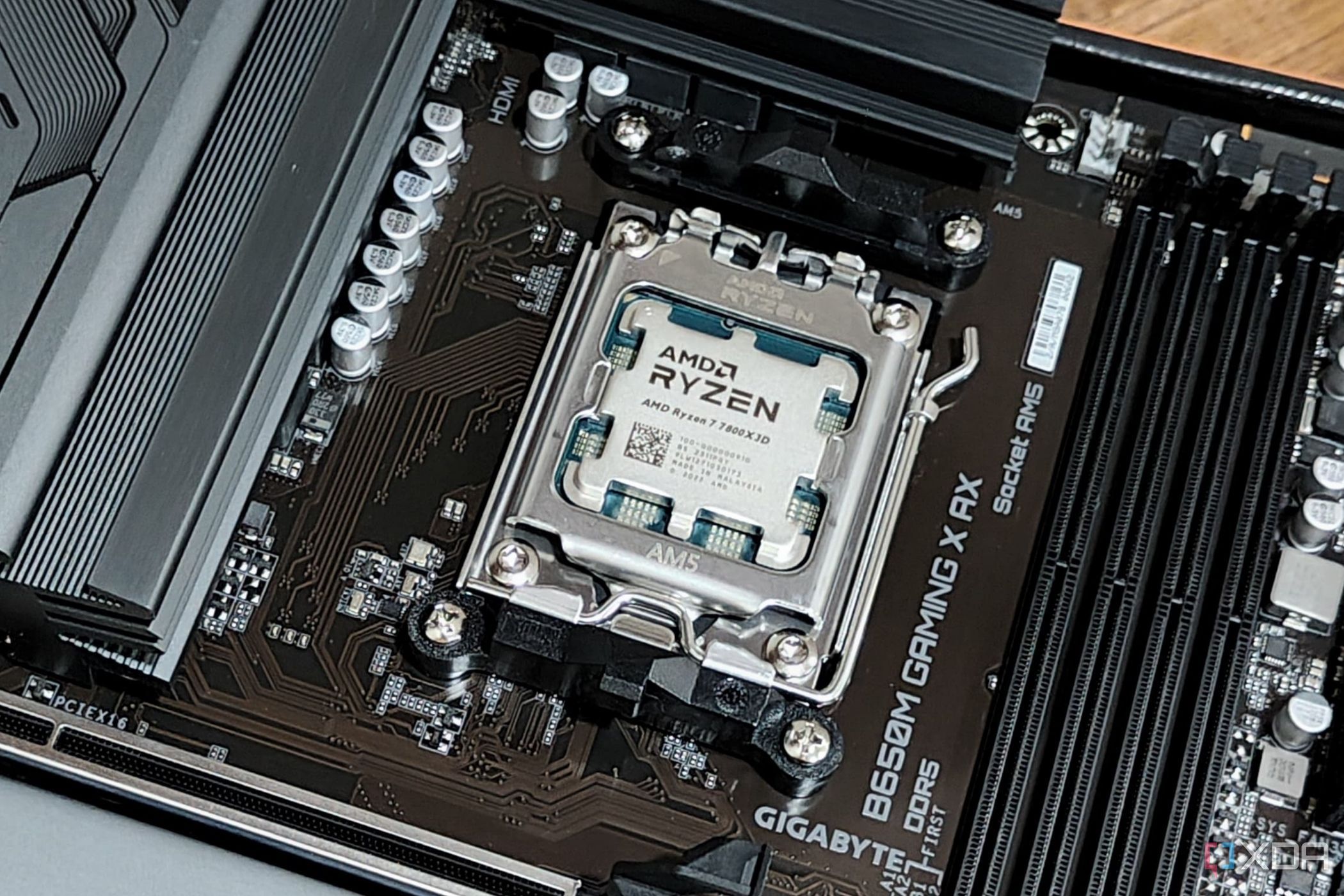
UPDATE: A critical warning has emerged for PC builders: many motherboards are shipping with settings that could dangerously overvolt your CPU, leading to potential damage. This alarming issue could be affecting thousands of systems worldwide RIGHT NOW!
New reports confirm that modern motherboards often come pre-configured with overclocking features, which can push CPUs beyond their recommended specifications. These factory settings, designed to enhance performance, may instead result in increased thermal output and accelerated hardware degradation. Users are urged to check their BIOS settings IMMEDIATELY to ensure their systems remain stable and safe.
Why This Matters: If you’ve purchased a new motherboard, like those from ASUS’s Z790, H770, or B760 line, your CPU could be at risk without your knowledge. The factory-enabled settings, such as MultiCore Enhancement for Intel processors and Precision Boost Overdrive for AMD Ryzen chips, can unintentionally cause higher voltage and power draw. This may lead to overheating and instability, jeopardizing your CPU’s lifespan.
Details: According to experts, many motherboard manufacturers use aggressive pre-configured profiles that do not account for individual chip characteristics. This blanket approach can lead to unexpected temperature spikes, making it crucial for users to adjust these settings. ASUS has recently updated its BIOS for the Z790, H770, and B760 motherboards, limiting CPU boost temperatures to 90°C. However, users must manually update their BIOS to benefit from these new safeguards.
How to Check Your CPU: To determine if your CPU is being overvolted due to auto-overclocking, follow these steps:
1. Restart your PC and hold down the BIOS access key (usually Del, F2, F10, or Esc) during startup.
2. Navigate to Advanced Mode to access all performance options.
3. Look for sections labeled AI Tweaker, Overclocking, or CPU Frequency.
4. Identify settings like MultiCore Enhancement or Precision Boost Overdrive and check if they are enabled.
5. If they are, disable them to restore stability.
After making adjustments, save your changes and restart your system. This quick check could save your CPU from premature failure.
Next Steps: Users are encouraged to stay vigilant and regularly check for BIOS updates from their motherboard manufacturers. The implications of these overclocking settings are serious; failing to act may lead to permanent hardware damage.
Don’t risk your investment—share this information with fellow PC builders and ensure they protect their systems too! The tech community must remain informed and proactive to avoid these potentially hazardous settings.

Quantum Computing Stocks Surge as Trump Targets Government Stakes

Miami Heat’s Rozier Arrested in Major FBI Gambling Probe

Amazon Aims to Replace 600K Jobs with Robots by 2033

Civil Rights Leader Bill Patterson Dies at 94, Leaving Legacy

Elon Musk Declares Tesla’s Optimus Will Be ‘Incredible Surgeon’

Urgent Text Exchange Between Gov. Pritzker and GOP Leader Escalates

Reddit Files Urgent Lawsuit Against Startups for Data Theft

Harbour Investments Cuts Stake in iShares S&P Mid-Cap 400 ETF

Meta Cuts 600 Jobs in AI Division to Enhance Efficiency

Dallin H. Oaks Assumes Leadership of Latter-day Saints Church

Steve Kerr Supports Jonathan Kuminga After Ejection in Preseason Game

Dua Lipa Celebrates Passing GCSE Spanish During World Tour

Tyler Technologies Set to Reveal Q3 2025 Earnings on October 22

Zoe Saldana Advocates for James Cameron’s Avatar Documentary

Chicago’s Viral ‘Rat Hole’ Likely Created by Squirrel, Study Reveals

Kelsea Ballerini Launches ‘Burn the Baggage’ Candle with Ranger Station

Richard Feldman Urges Ban on Menthol in Cigarettes and Vapes

Community Unites for Seventh Annual Mental Health Awareness Walk
-
 Politics1 week ago
Dallin H. Oaks Assumes Leadership of Latter-day Saints Church
-
 Sports1 week ago
Steve Kerr Supports Jonathan Kuminga After Ejection in Preseason Game
-
 Lifestyle1 week ago
Dua Lipa Celebrates Passing GCSE Spanish During World Tour
-
 Business1 week ago
Tyler Technologies Set to Reveal Q3 2025 Earnings on October 22
-
 Entertainment1 week ago
Zoe Saldana Advocates for James Cameron’s Avatar Documentary
-
 Science1 week ago
Chicago’s Viral ‘Rat Hole’ Likely Created by Squirrel, Study Reveals
-
 Lifestyle1 week ago
Kelsea Ballerini Launches ‘Burn the Baggage’ Candle with Ranger Station
-
 Health1 week ago
Richard Feldman Urges Ban on Menthol in Cigarettes and Vapes
-
 Health1 week ago
Community Unites for Seventh Annual Mental Health Awareness Walk
-

 World1 week ago
D’Angelo, Iconic R&B Singer, Dies at 51 After Cancer Battle
-

 Business1 week ago
Mega Millions Jackpot Reaches $600 Million Ahead of Drawings
-

 Business1 week ago
MLB Qualifying Offer Jumps to $22.02 Million for 2024